
Getting started
Choosing a plan and starting your free trial
Pick a plan during sign-up (or later), and understand how billing differs if you install from the Shopify App Store.
Updated 2026-09-03
Every Tracelot account needs an active subscription to use most features. You choose a plan as the last step of sign-up, or later from Settings → Subscription. How you pay depends on how you connected: accounts that pay Tracelot directly use a card through Stripe; accounts installed from the Shopify App Store are billed through Shopify instead.
Plans
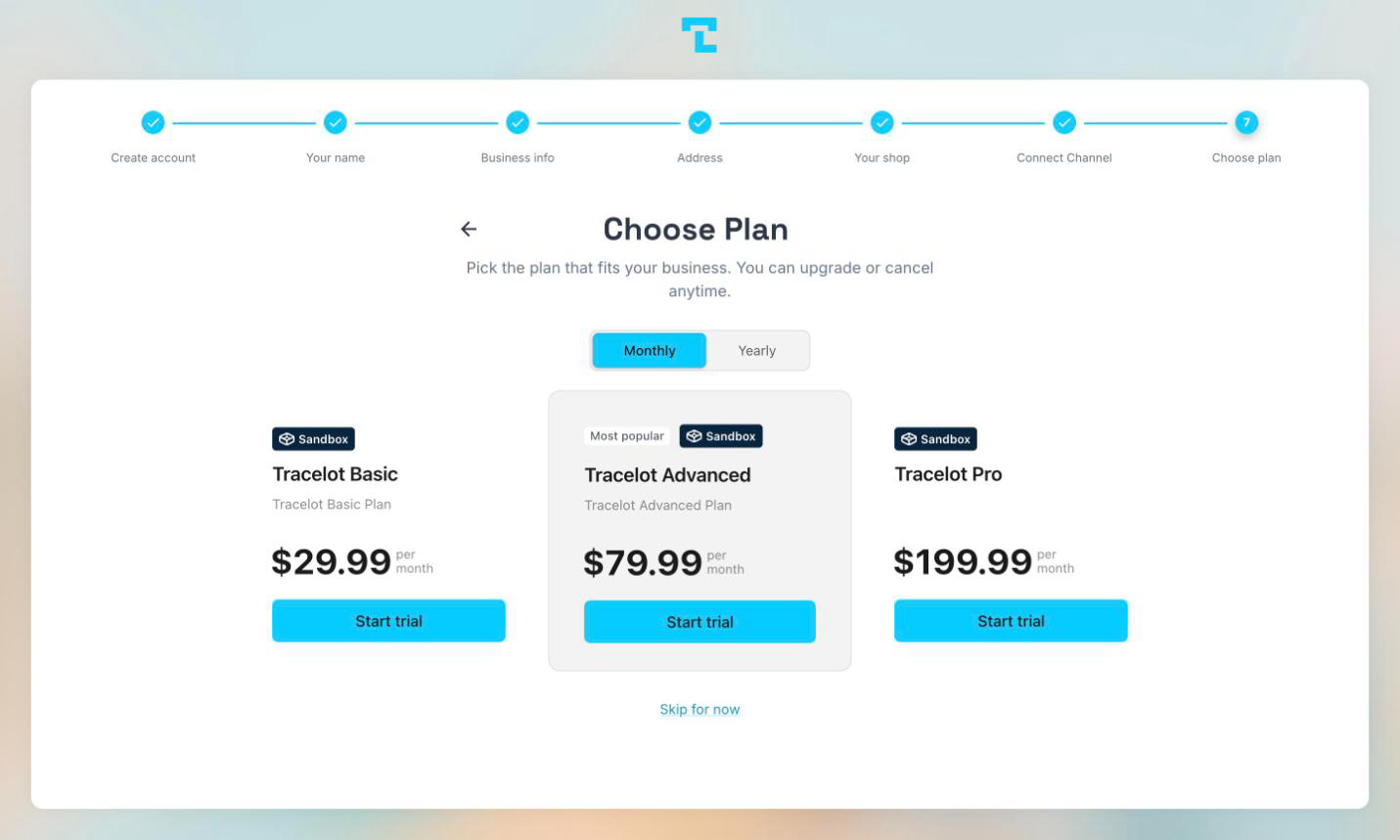
The plans available to you, their prices, and their features are shown on the plan picker itself — the list is maintained on the backend and can change, so check the picker for current options rather than relying on a fixed list here. Each plan card shows its name, monthly price, a feature summary, and (if it has one) its trial length.
Free trial
Plans with a trial show it on the card, for example "14-day free trial". If you install Tracelot from the Shopify App Store, billing runs through Shopify with a 30-day free trial. Your card isn't charged during the trial period.
Once your subscription is active, Settings → Subscription shows your status (Trial, Active, Past Due, Unpaid, or Canceled) and, while trialing, the date your trial ends.
Paying by card (Stripe)
If you didn't arrive through the Shopify App Store, the Choose Plan step shows Tracelot's pricing table directly, powered by Stripe. Pick a plan and complete checkout with a card; Stripe redirects you back to Tracelot once you're done. You can also click Skip for now to explore the dashboard first and choose a plan later — most features stay locked until you do.
Paying through Shopify
If you installed Tracelot from the Shopify App Store, the Choose Plan step shows Shopify's plan cards instead of Stripe's. Click Choose [plan name] on a card to continue — you're redirected to Shopify's own approval page to confirm the charge, then sent back to Tracelot. On this path there's no Skip for now link: Shopify merchants must pick a plan to finish setting up billing.
Changing plan later
Go to Settings → Subscription any time to see your current status and change plans. If you already have an active or trialing subscription, click Manage subscription to open Stripe's billing portal (card-billed accounts) in a new tab. If you don't yet have one, click Choose a plan to open the same pricing table you saw during sign-up.
Related
Creating your account · The onboarding checklist · Subscription settings