
Getting started
Logging in and resetting your password
Sign in with email and password, Google, Amazon, or a passkey, reset a forgotten password, and switch between accounts.
Updated 2026-09-03
The login page at dash.tracelot.com/login offers several ways in: email and password, Continue with Google, Continue with Amazon, or a passkey (fingerprint, face, or security key) via the fingerprint icon inside the email field. If your account has two-factor authentication enabled, you'll be asked for a second code after your first sign-in step succeeds.
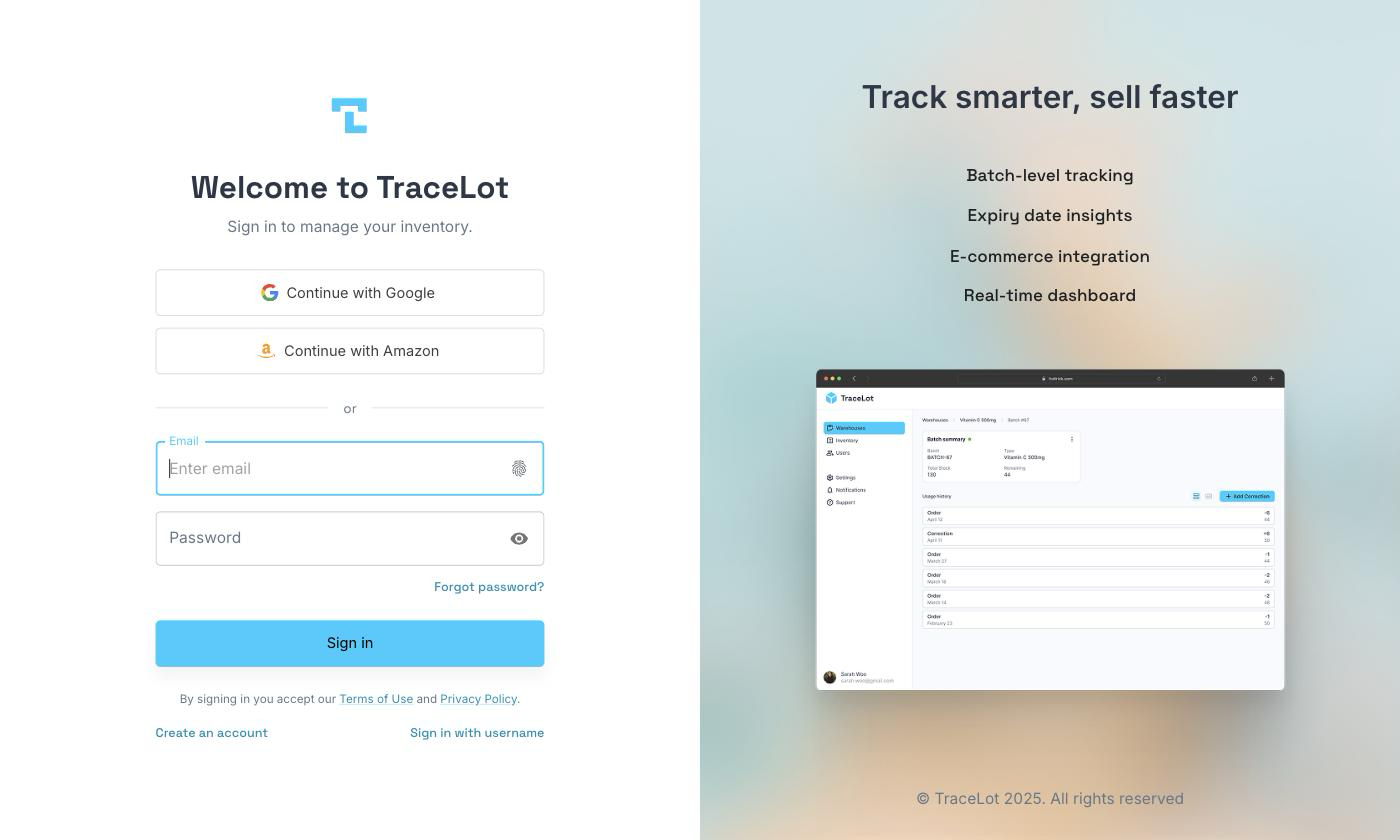
Logging in
- Go to dash.tracelot.com/login.
- Click Continue with Google or Continue with Amazon to sign in with that provider, or enter your email and password and click Sign in.
- To sign in with a passkey instead of a password, enter your email and click the fingerprint icon inside the email field.
- If prompted, enter the 6-digit code from your authenticator app or email, then click Verify.
Note
Some accounts sign in with a username instead of an email — for example, teammates added as local users. Click Sign in with username on the login page, then enter your Account ID, username, and password.
Forgot password
- On the login page, click Forgot password?.
- Enter your email and click Send Reset Code.
- Check your email for the reset code. Enter the code and a new password (minimum 8 characters), then click Reset Password.
After resetting, you're returned to the login page with your email pre-filled — enter your new password to sign in.
Switching accounts
If you belong to more than one Tracelot account, a Company dropdown appears near the top of the sidebar, listing every account you have access to. Choosing a different one reloads the dashboard scoped to that account. If you only belong to one account, the dropdown doesn't appear.