
Orders
How order processing works
When orders are pulled and allocated, what gets written back to your channel, and how to turn it off.
Updated 2026-09-03
Order processing is the pipeline that pulls new orders from your connected channel, allocates each line item to a batch, and (depending on your settings) writes the result back to the channel. It runs automatically, and you can also trigger it yourself.
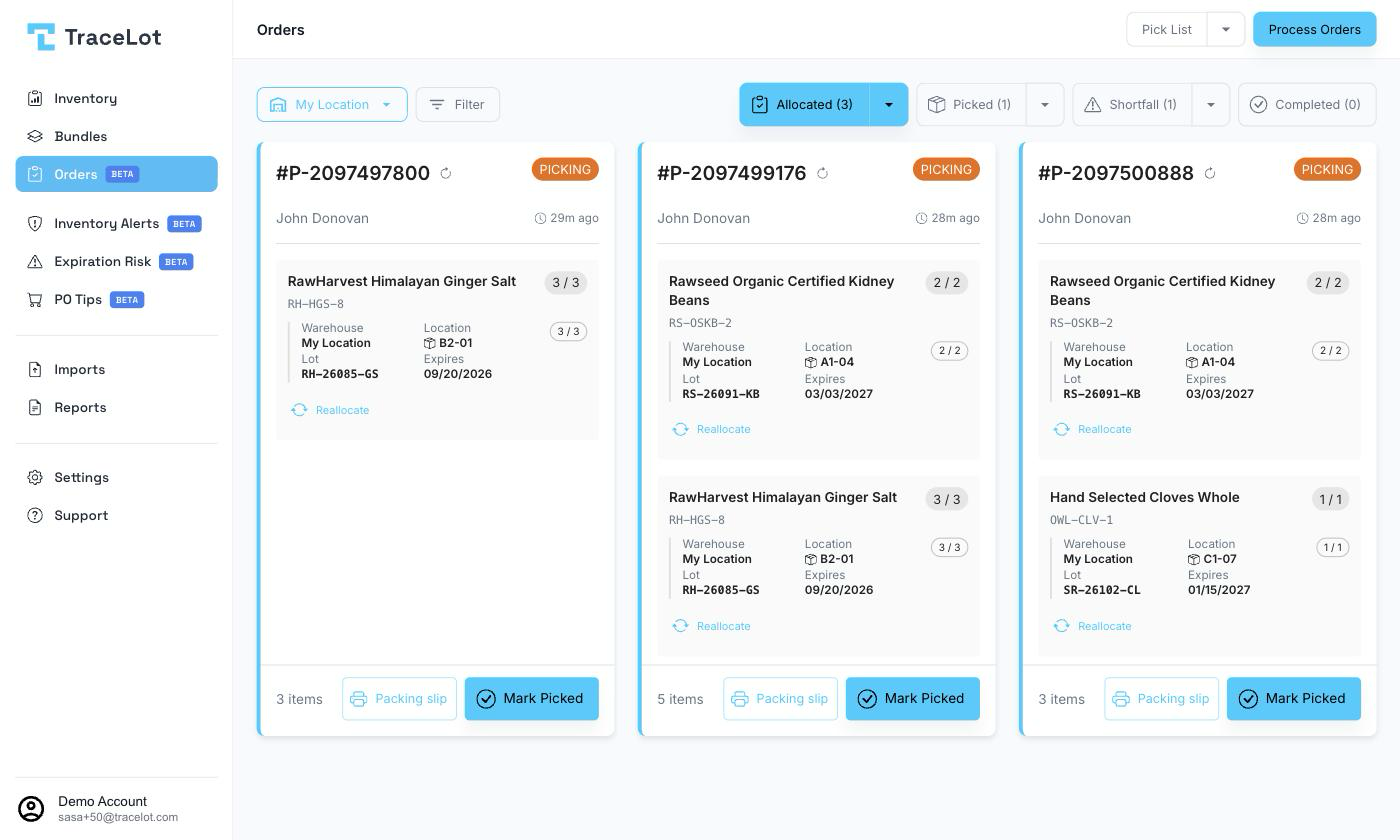
When orders are processed
Tracelot processes orders automatically every 10 minutes. You can also run it on demand from the Orders page: click Process Orders in the toolbar.
Clicking Process Orders requires an active license, and only starts a run if the account's order processing is turned on (see Turning it off) and no run is already in progress for the account. While a run — scheduled or manual — is active, a progress banner appears above the order list ("Starting…", "Fetching orders from channel…", or "Processing orders… X/Y"), and the Process Orders button is disabled with a tooltip explaining that a run is already in progress. Clicking it again while it's running does nothing beyond that — the page just keeps polling the run already under way. If you click Process Orders in one browser tab while a scheduled run (or a click in another tab) has already started one, Tracelot joins that existing run instead of starting a second one.
When a run finishes, a toast reports how many orders were processed and how many failed (or that there was nothing to process), and the order list refreshes.
What allocation does
For each order line, Tracelot allocates stock using FEFO — first-expiry-first-out. Among a product's open, in-date batches at the order's warehouse, the batch with the earliest expiry date is used first; batches that have already expired are never chosen automatically. If a line can't be fully covered from available batches, the order is left partially or fully unallocated and shows up in Shortfall.
What your channel sees
For Veeqo, once a line is allocated Tracelot can write a note onto that order's line item describing what was allocated. The note's wording is configurable in Settings → Channels → Line Item Format (on the Veeqo connection card); the default template is:
Note
{quantity}x Lot {batchCode} · Exp {expiryDate} · Loc {location}
You can rewrite the template using these tokens: {batchCode}, {expiryDate}, {location}, {customField} (the product's configured custom field), {quantity}, {remainingQty} (the batch's remaining quantity), {supplier}, and {description}. The dialog shows a live preview as you type. An unrecognized token is left in the note literally rather than dropped.
Turning it off
Automatic (and manual) order processing is controlled per connected channel, not per account as a whole: go to Settings → Channels and turn off the Order Processing toggle on that channel's connection card. If every connected channel has it off, Tracelot shows a banner at the top of the Orders page — "Order processing is off for every connected channel" — with an Open Channels shortcut, and the Process Orders button is disabled.
There is no separate per-warehouse switch to disable processing. Settings → Warehouses only lets you choose which channel order status (Awaiting Fulfillment or Shipped) triggers allocation for that warehouse — it doesn't turn processing on or off.