
Inventory
Batch documents
Attach invoices, certificates, and other files to a batch, then view or remove them later.
Updated 2026-09-03
Every batch has its own Documents tab where you can attach supporting files — an invoice from the supplier, a certificate of analysis, or anything else worth keeping with that specific batch.
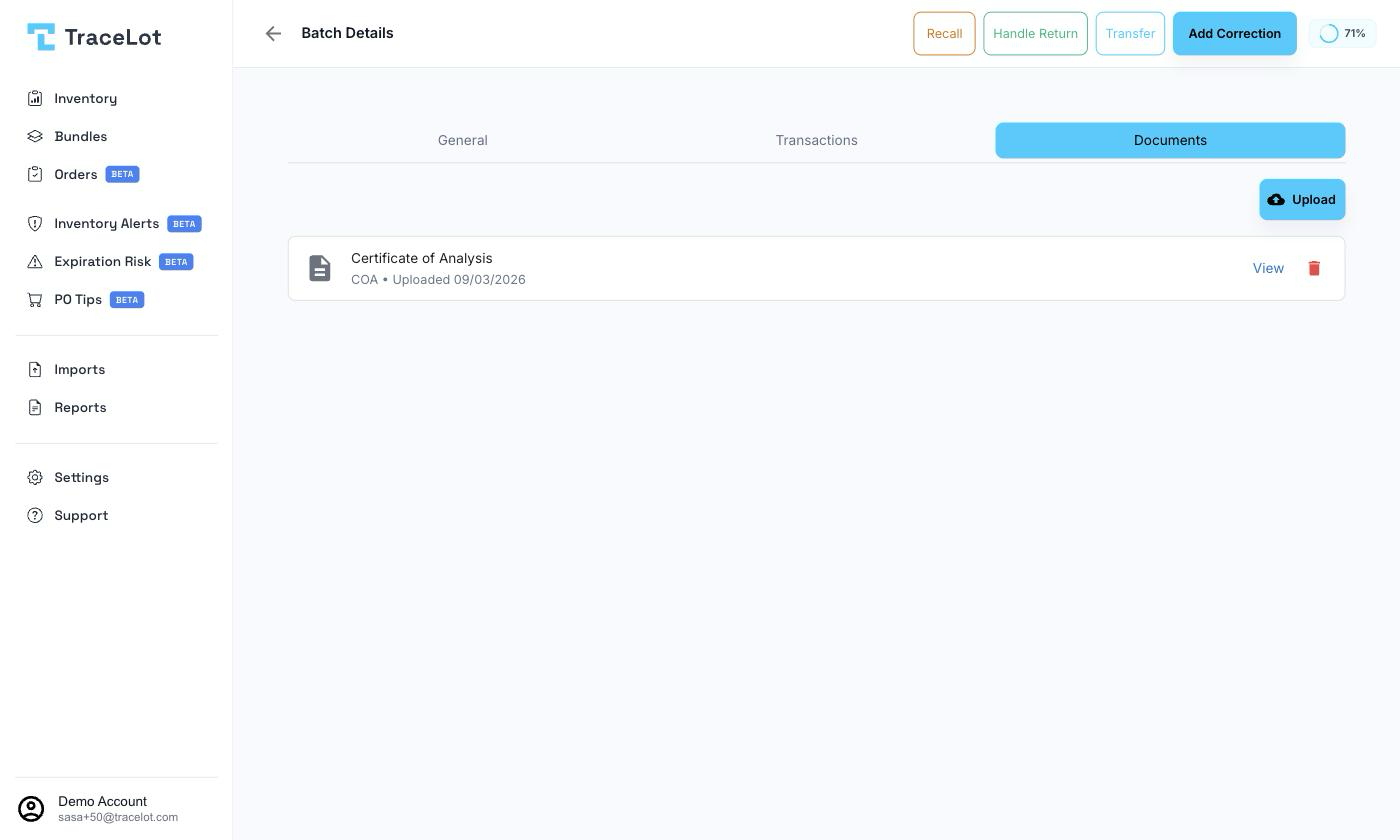
What you can attach
When you upload a document you choose a Category from: Invoice, Certificate, COA, Lab Report, Delivery Note, or Other. Accepted file types are PDF, DOC, DOCX, JPG, and PNG, up to 10MB.
Uploading
- Open the batch and go to its Documents tab (or click Upload from the product page's batch list where a document count is shown).
- Click Upload.
- Drag your file onto the drop zone, or click it to browse.
- Enter a Document Name (pre-filled from the file name) and choose a Category — both required.
- Optionally add a Description.
- Click Upload.
Viewing and downloading
Each attached document is listed with its name, category, and upload date (plus its description, if one was added). Click View to open the file in a new tab. From a product's batch list, a Documents count is shown for any batch with at least one document — click the count to jump straight to that batch's Documents tab.
Removing
Click the delete icon next to a document, then confirm in the Delete Document dialog. This can't be undone.