
Inventory
Batches
Add, edit, and track batches — the unit that carries an expiry date, a code, and a location.
Updated 2026-09-03
A batch is a quantity of one product (or one product variant) that shares a single expiry date, a single batch code, and a single storage location. It's the unit Tracelot uses for expiry tracking, FEFO (first-expiry-first-out) order allocation, and cost/valuation reporting. A product can have any number of open batches at once — for example, two shipments received a month apart with different expiry dates.
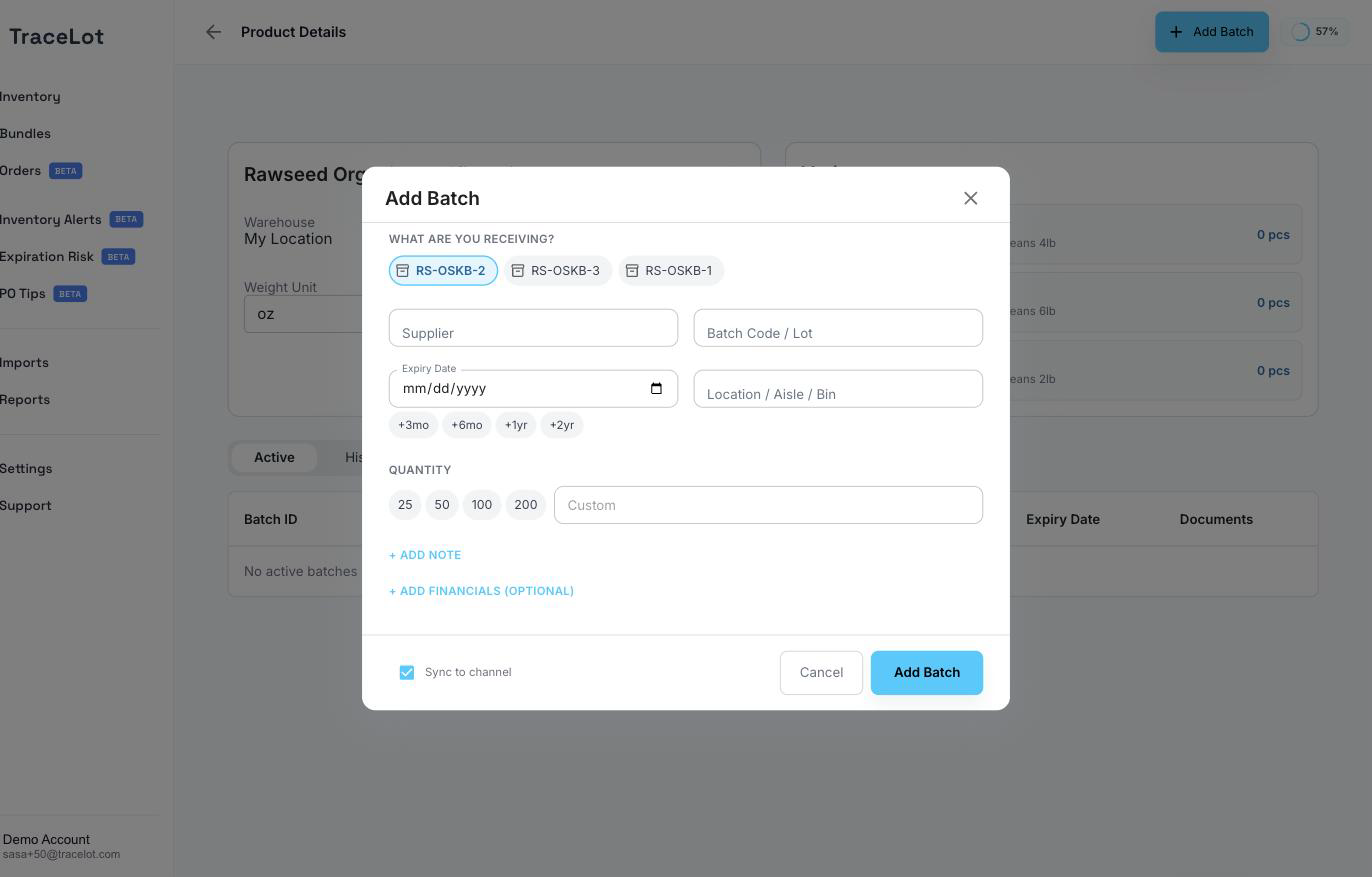
Adding a batch
Open a product from the Inventory page and click Add Batch in the top-right.
- If the product has variants (or is on-demand with a base/bulk variant), choose what you're receiving — a specific variant, or Bulk for weight.
- Enter Supplier and Batch Code / Lot. Recently used values appear as quick-pick chips below each field once you've entered a few.
- Enter Expiry Date (quick chips add +3mo, +6mo, +1yr, or +2yr) and, optionally, Location / Aisle / Bin.
- Enter Quantity — pieces for a variant, or a weight amount and unit (oz, lb, g, kg) for a bulk/on-demand batch. Quick-pick chips offer common amounts.
- Optionally click + ADD NOTE to add a free-text note.
- Optionally click + Add financials (optional) to record what the supplier charged — see Batch financials.
- If the product has a configured extra field, fill it in — see Custom fields.
- Leave Sync to channel checked to push the new quantity to your sales channel, or uncheck it to update Tracelot only.
- Click Add Batch.
Note
If you type a batch code and expiry date that match an existing open batch on the same product, Tracelot merges the new quantity into that batch as an additional receipt instead of creating a separate one — and prefills the cost field from that batch's most recent receipt cost.
Fields
| Field | Required | What it's for |
|---|---|---|
| What are you receiving? (variant or Bulk) | Yes, when the product has more than one variant or a base/bulk variant | Which variant (or bulk weight) this batch is for. |
| Supplier | Yes | Who this batch was purchased from. |
| Batch Code / Lot | Yes | The identifier for this batch — matched against existing batches to decide whether to merge as a top-up. |
| Expiry Date | Yes | Must be today or a future date. |
| Location / Aisle / Bin | No | Where the batch is physically stored. |
| Quantity | Yes, and must be greater than 0 | Pieces for a variant batch, or a weight amount for a bulk/on-demand batch. |
| Weight unit | Yes, for bulk/weight batches | oz, lb, g, or kg. |
| Note | No | Free-text note, hidden behind "+ ADD NOTE" until needed. |
| Financials (cost per unit / total, landed cost lines) | No | See Batch financials. |
| Extra field | Only if the product has one configured | See Custom fields. |
| Sync to channel | No — defaults to checked | Whether the new quantity is pushed to your sales channel. |
Editing a batch
Open the batch from a product's Active or History tab, or from the Inventory page. On the batch page, click the ⋮ menu and choose Edit to change Batch Name, Location/Aisle/Bin, Supplier, Expiry Date, Description, and the extra field (if the product has one configured). Batch Name and Expiry Date are required; the expiry date can't be moved into the past. Choose Edit Financials from the same menu to update cost — see Batch financials.
The batch page
A batch's page has three tabs:
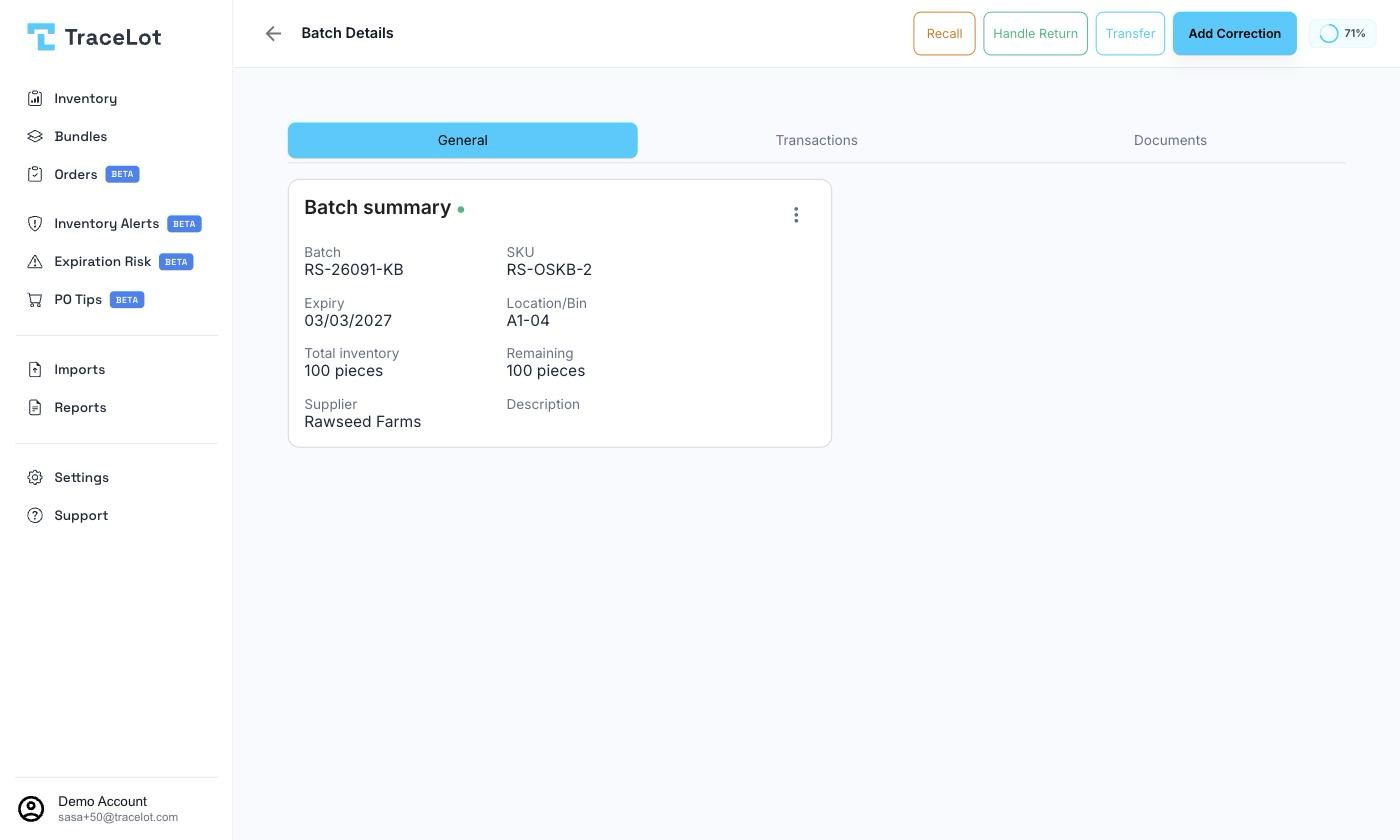
- General — a summary card (batch code, SKU, expiry, location/bin, total inventory, remaining, supplier, description, and the extra field if the product has one) plus the ⋮ menu for Edit and Edit Financials.
- Transactions — the batch's full ledger: every receipt, order deduction, correction, and transfer, each with its date, quantity change, and running remaining balance. Order-linked entries show the order reference.
- Documents — files attached to this batch — see Batch documents.
From the batch page's toolbar you can also Recall, Handle Return, Transfer, or Add Correction — see Recalls, Returns, Transfers, and Corrections.
"Sync to channel" / "Update stock in Channel"
Most actions that change a batch's quantity — adding a batch, and creating a correction — offer a channel-sync checkbox (labeled Sync to channel on Add Batch, Update stock in Channel on a correction). When checked, Tracelot pushes the resulting quantity change to your connected sales channel by the same amount. Leave it unchecked to update Tracelot's own records only, without touching the channel.