
Inventory
Products and syncing
See what's synced from your channel, trigger a sync, and open a product's detail page.
Updated 2026-09-03
The Inventory page lists every product Tracelot has synced from your connected sales channel for the currently selected warehouse. Products with variants (multiple sizes, flavors, etc.) can be expanded to show each variant as its own row.
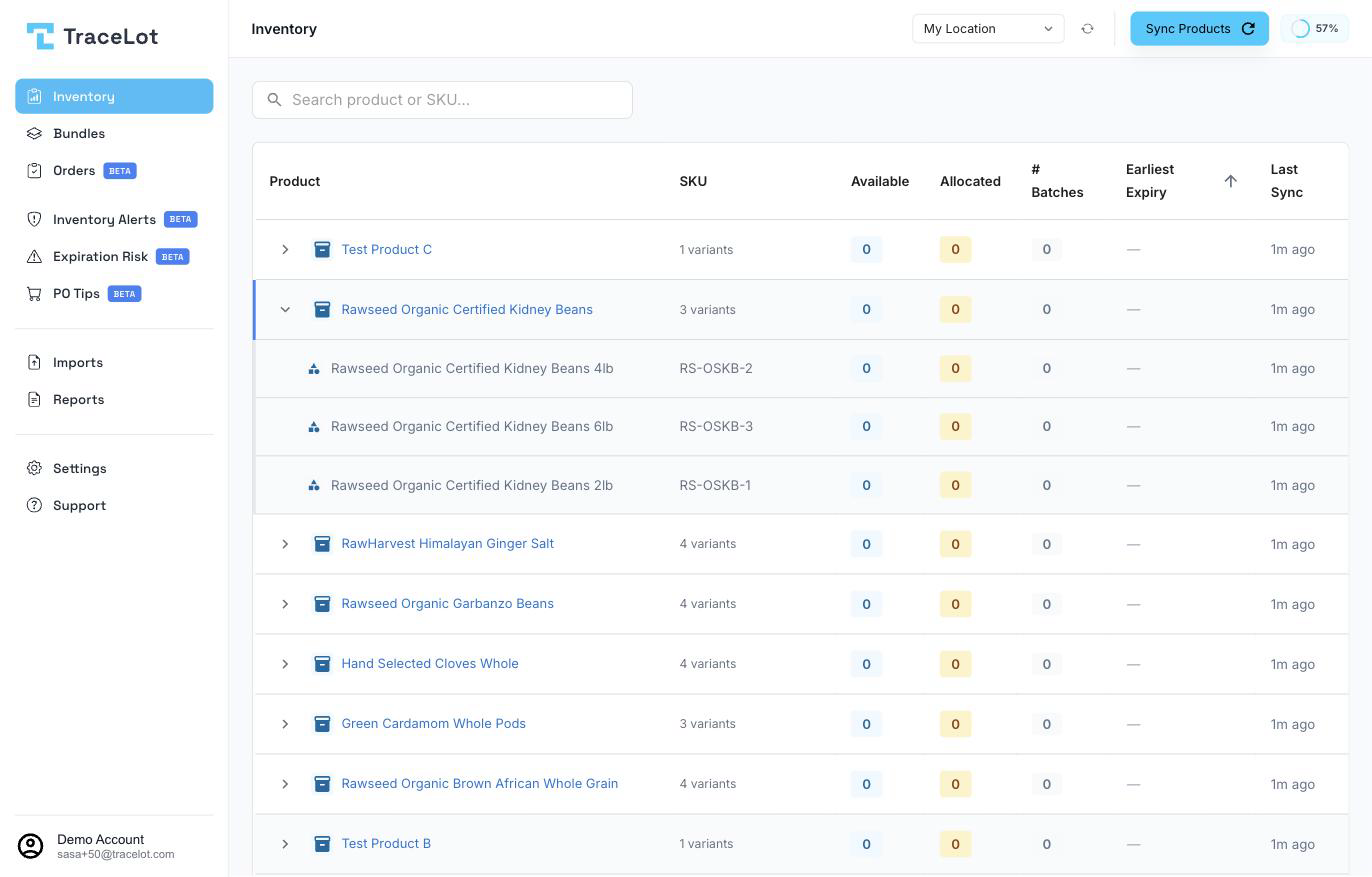
The Inventory page
Each product row shows:
- Product — the product title. An expand arrow appears if the product has variants.
- SKU — the variant's SKU, or, on a parent row with variants, the number of variants (e.g. "3 variants").
- Available — quantity on hand. For an on-demand product this shows total weight instead (e.g. "42.5 oz"); a variant row under an on-demand product shows both PrePack (physical pre-packaged units) and Avail (units that can still be made from bulk weight).
- Allocated — quantity already committed to open orders.
- # Batches — how many batches currently back this product or variant.
- Earliest Expiry — the soonest expiry date across the product's batches, highlighted in red if it's coming up soon. Shows an em dash if there's no batch.
- Last Sync — how long ago this product last synced from the channel ("Just now", "5m ago", "3d ago", or "Never").
Click Available or Earliest Expiry in the column header to sort by that column; click again to reverse the direction. Use the search box to filter by product name or SKU — search applies after a short pause as you type.
Choosing a warehouse
A warehouse selector sits in the top-right of the dashboard, next to the page title, on every page that's warehouse-scoped (Inventory included). It lists every warehouse synced to your account. Switching it reloads the Inventory page, Imports, Bundles, and other warehouse-scoped views for the newly selected warehouse. If a channel is connected, a Sync warehouses icon next to the selector pulls in any new warehouses from your channel.
Note
If no warehouse is selected yet, the Inventory page shows a setup banner instead of the product table.
Syncing products
Click Sync Products in the top-right of the Inventory page to pull the latest product catalogue from your connected sales channel for the selected warehouse. While a sync is running the button shows Syncing... and a live counter of processed/failed rows and current page appears above the table. You can keep using the dashboard while it runs.
When a sync finishes with failures, a See N Errors link appears — click it to see which products failed and why, in a dialog.
If the warehouse has no products yet, the table shows a Sync your products to get started message with its own Sync Products button in place of the empty table.
Product details
A product can be missing from the list for a couple of reasons:
- Not yet synced — click Sync Products to pull it in from your channel.
- Inactive on the channel — the Inventory page only lists active products, so a product deactivated on your sales channel drops out of the list.
- Wrong warehouse selected — products are scoped per warehouse; switch the warehouse selector to check another location.
Click a product's name to open its detail page. It shows:
- A summary card with the warehouse, and either In Stock (regular products) or Total Available (on-demand products, shown as weight).
- For a product with variants, a weight unit selector (once, for the whole product, before any variant weight has been manually confirmed) and a Variants card listing each variant's SKU and its available quantity.
- Active and History tabs listing the product's batches — Batch ID (links to the batch page), SKU, Location/Bin, Total Quantity, Remaining Quantity, Expiry Date, and a Documents count (linking to that batch's documents when non-zero). History also adds an Actions column with a view history link.
- An Add Batch button — see Batches.
- A ⋮ menu with Enable On-Demand / Disable On-Demand and Configure Extra Field (or, once set, Extra field: <label>) — see Custom fields.
Related
Adding and editing batches · Importing batches from a CSV · On-demand products