
Orders
Shortfall
What it means when an order can't be fully allocated, and how to clear it.
Updated 2026-09-03
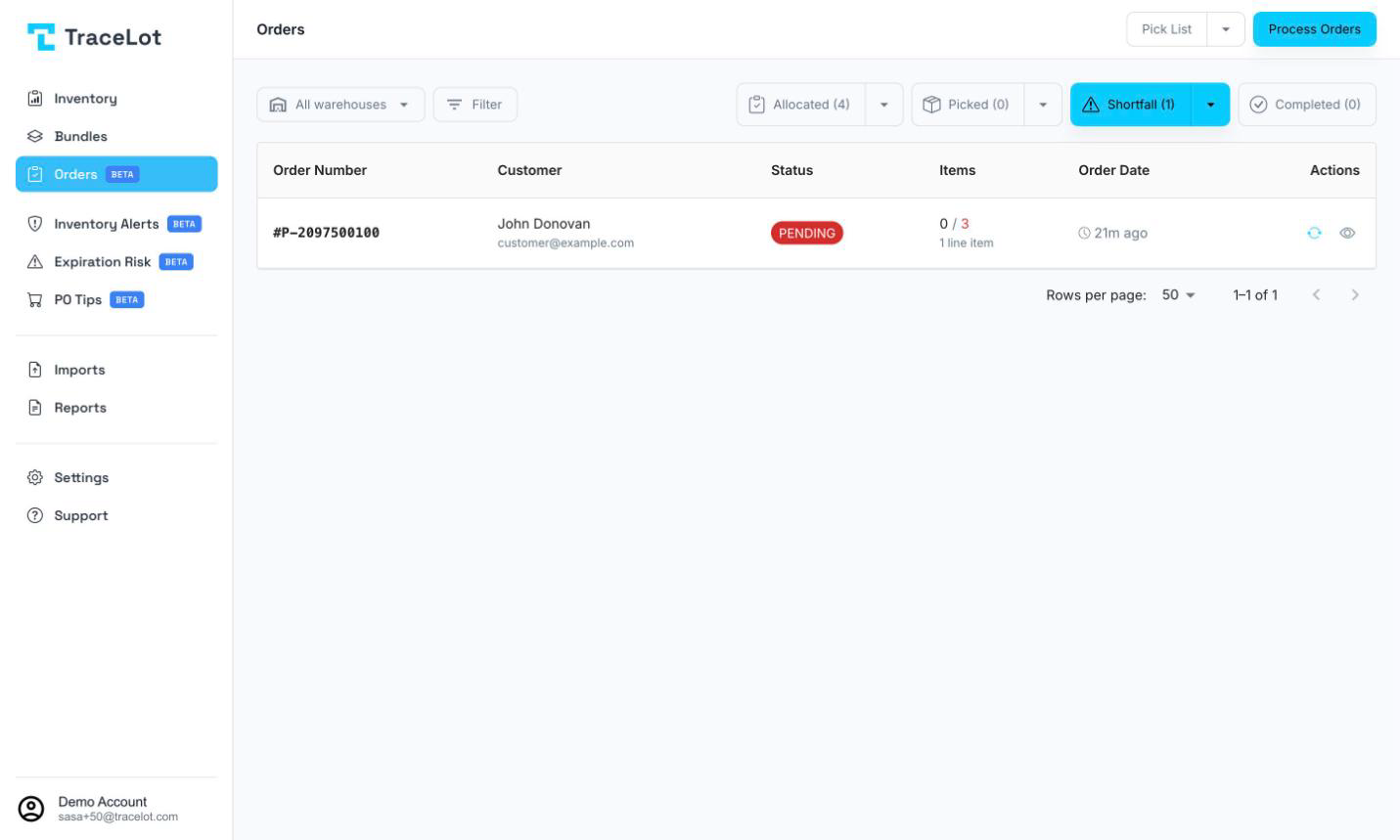
A shortfall order is one where at least one line item doesn't have a full open allocation. It shows up on the Shortfall tab of the Orders page alongside every other order still in PENDING, ALLOCATED, PARTIAL, or PICKING status that has an unfulfilled line.
What shortfall means
A line counts as shortfall when it has no open allocation at all, or when its allocated quantity is less than what was ordered. This happens when order processing couldn't find enough in-date stock to cover the line, or when a line has been manually deallocated.
Fixing it
The usual fix is to add stock — receive a new batch for the product — and then retry allocation so Tracelot picks it up.
Retrying
Retry a single order with the retry icon on its row in the Shortfall table. If the retry fully covers the order, it disappears from Shortfall and moves onto the Allocated tab; a partial retry reports how many items were newly allocated and how many are still short; if nothing could be allocated, a toast tells you to receive stock.
To retry every shortfall order at once, open the Shortfall tab's bulk-action menu and choose Retry Allocating All. This acts on every order currently matching the tab's filters and warehouse selection, and runs as a background job with a progress banner.
Shipping anyway
Sometimes the channel has already shipped an order that Tracelot still shows as short — for example, a status mismatch or an order fulfilled outside Tracelot. For that, open the Shortfall tab's bulk-action menu and choose Mark All Shipped.
This is a destructive, one-way bulk action, so it's behind a typed confirmation: the dialog asks you to type mark shipped before the button — labeled Mark N Shipped — becomes enabled. It flips every order currently on the Shortfall tab view to shipped locally in Tracelot only; the channel is not contacted. Orders currently in PICKING are excluded automatically.
Related
How processing works · Reallocate / Deallocate · The Orders page