Orders
The Orders page
The four tabs, filters, warehouse picker, and what each order card shows.
Updated 2026-09-03
The Orders page is where you work orders after they've been pulled from your channel — see How processing works for how they get here. It's organized into four tabs, with a warehouse picker and a filter bar above them that apply across all four.
The four tabs
| Tab | What's in it |
|---|---|
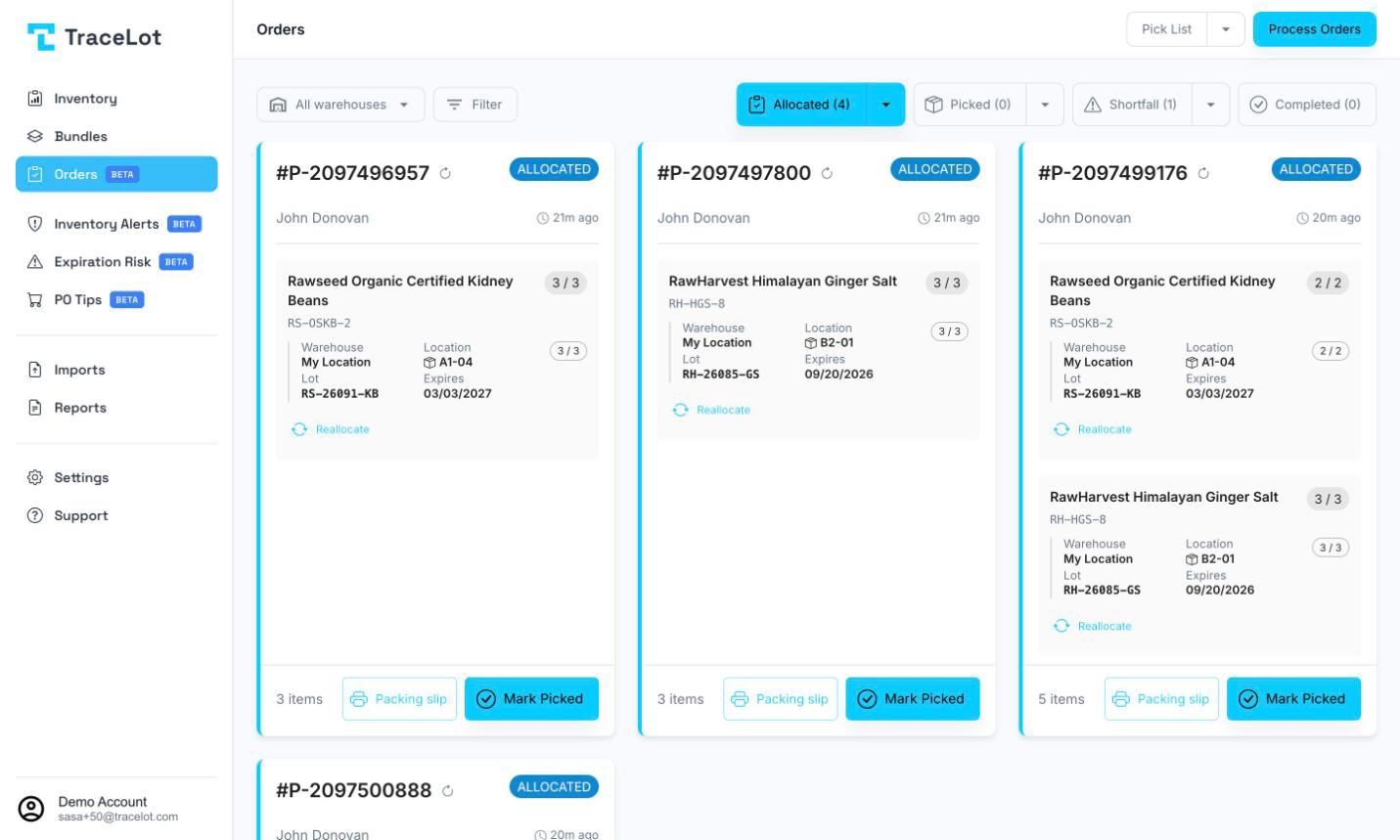
| Allocated | Orders in status ALLOCATED, PARTIAL, or PICKING — allocation has run and at least the order isn't a pure shortfall. Shown as cards. Its bulk-action menu offers Mark All Picked. |
| Picked | Orders in status PICKED — picked and waiting to ship. Shown as cards; each card can flip to show the shipping address. Its bulk-action menu offers Mark All Shipped. |
| Shortfall | Orders in PENDING, ALLOCATED, PARTIAL, or PICKING status that have at least one line item without an open allocation. Shown as a table. Its bulk-action menu offers Retry Allocating All and Mark All Shipped — see Shortfall. |
| Completed | Orders in status SHIPPED or FULFILLED. Shown as a table with pagination. |
Each tab's button shows a live count in parentheses, e.g. Allocated (12). Allocated and Picked use a Load more button to page through results; Shortfall and Completed use classic numbered pagination (25/50/100 rows per page).
Note
If order processing is off for every connected channel, a banner appears above the tabs with an Open Channels button that takes you to Settings → Channels.
Filtering
Two controls sit to the left of the tabs:
- Warehouse picker — choose All warehouses or one/more specific warehouses. It's disabled when the account has only one warehouse.
- Filter button — opens the Filter Orders dialog.
The Filter Orders dialog has these fields, each accepting multiple values (type a value, press Enter or comma to add it as a chip):
| Field | Matches |
|---|---|
| Batch | Line items allocated to the given batch code(s). |
| Order Number | The order's number. |
| Customer Email | The order's customer email. |
| SKU | Line items with the given SKU(s). |
| Product Name | Line items on the given product(s). |
| Order Date (From / To) | A date range on the order date. |
| Needs attention (reconcile flagged) | A toggle that limits results to orders flagged for reconciliation. |
All text filters are partial and case-insensitive — you don't need to type the full value. Multiple values within one filter are combined with OR; different filter fields are combined with AND. Batch, SKU, and Product Name filter by line item: when combined, each just has to match *some* item on the order, not necessarily the same one. Filters apply across all four tabs and stay applied when you switch tabs.
Active filters show as removable chips in a bar above the order list, with a Clear all link and a ? button that reopens this explanation.
Reading an order card
On the Allocated and Picked tabs, each order is a card:
- Order number with a refresh icon next to it — click it to resync the order from the channel on demand.
- Status chip — ALLOCATED (blue), PARTIAL (amber), PICKING (amber), or PICKED (green).
- A colored left border: solid blue for a fully allocated order, a diagonal striped blue border for a PARTIAL order, solid green for PICKED.
- One block per line item, showing product, variant, and SKU, plus a N / Ordered quantity chip. A layers icon marks a bundle component, with a tooltip naming the bundle.
- Under each line with open allocations: warehouse, location, lot (batch code), expiry, and the batch field if the product has one configured, plus a customer units / ordered chip for that allocation. A line can show more than one allocation when it was split across batches.
- A Deallocated chip on any line that's been manually deallocated (see Reallocate / Deallocate), and a Reallocate button on lines that have an allocation, a shortfall, a split, or are deallocated.
The card footer shows the total item count and two buttons: Packing slip and either Mark Picked (Allocated tab) or Mark Shipped (Picked tab). Packing slip is disabled with a tooltip explaining why when there's nothing allocated yet, or when the order ships from more than one warehouse and the warehouse filter hasn't been narrowed to one — see Packing slips.
A Picked-tab card can be flipped by clicking the order number, revealing the shipping address (recipient, address, phone, email) on the back, with a back arrow to flip it again.
Order details
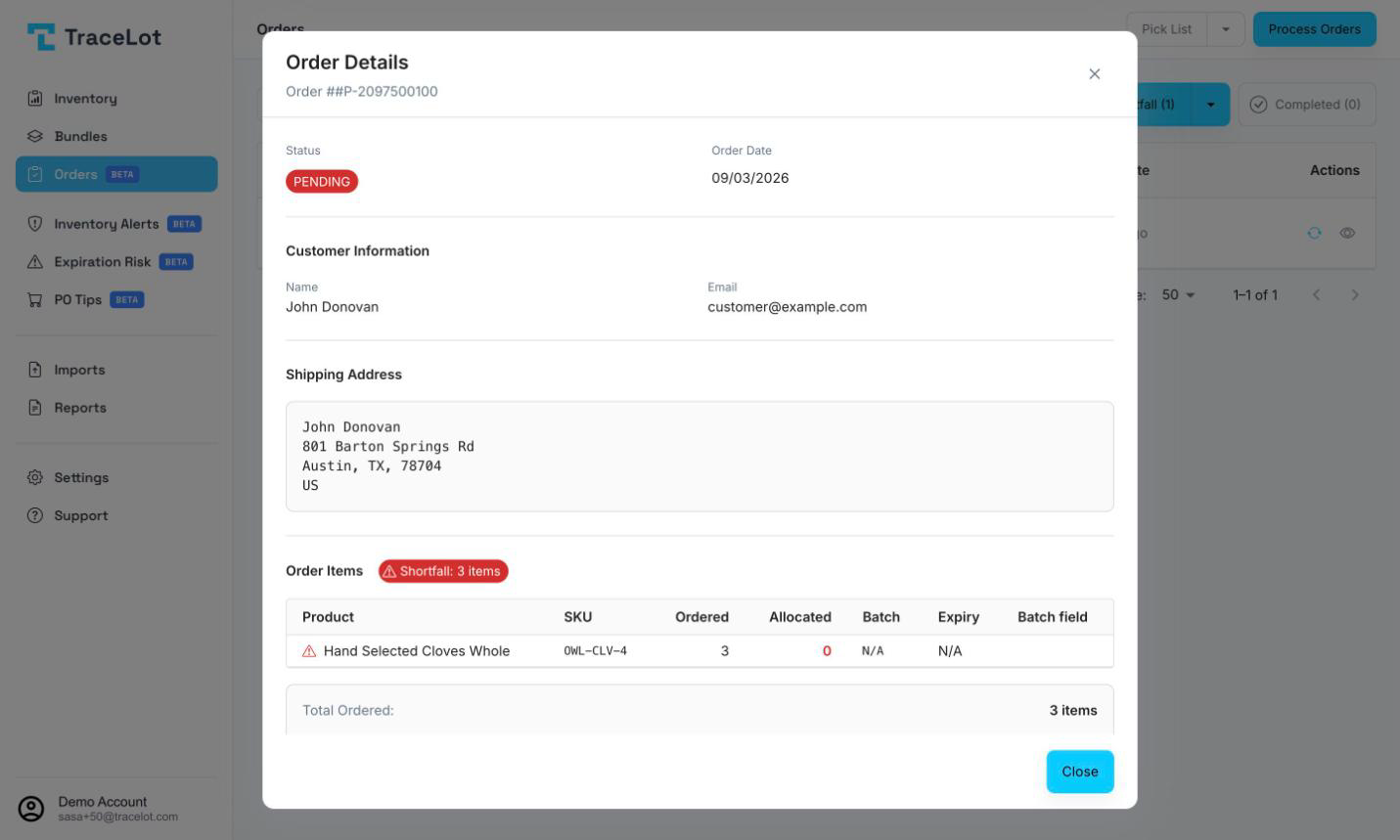
On the Shortfall and Completed tabs (table view), click the eye icon to open Order Details. It shows status, order date, allocated-at time, customer name and email, the full shipping address, and a line-item table with product, SKU, ordered/allocated quantities, batch, expiry, and batch field per allocation. If the order is short, a Shortfall: N items chip appears next to the Order Items heading, and the summary panel below the table breaks out Total Ordered, Total Allocated, and Shortfall.