
Getting started
Connecting Veeqo
Link your Veeqo account so Tracelot can sync warehouses, products, and orders.
Updated 2026-09-03
Veeqo is an aggregator channel in Tracelot — it can represent several of your sales channels at once through Veeqo's own integrations. Connecting it lets Tracelot sync your warehouses, products, and orders from Veeqo.
What it does
Connecting Veeqo syncs your warehouses, products, and orders into Tracelot. Once connected, you can assign batches to Veeqo-synced products and let Tracelot allocate stock to incoming Veeqo orders.
Careful
Tracelot allows either one aggregator (Veeqo) or one-or-more direct channels (like Shopify), never both on the same account. If a direct channel is already connected, you'll need to disconnect it before connecting Veeqo.
During sign-up
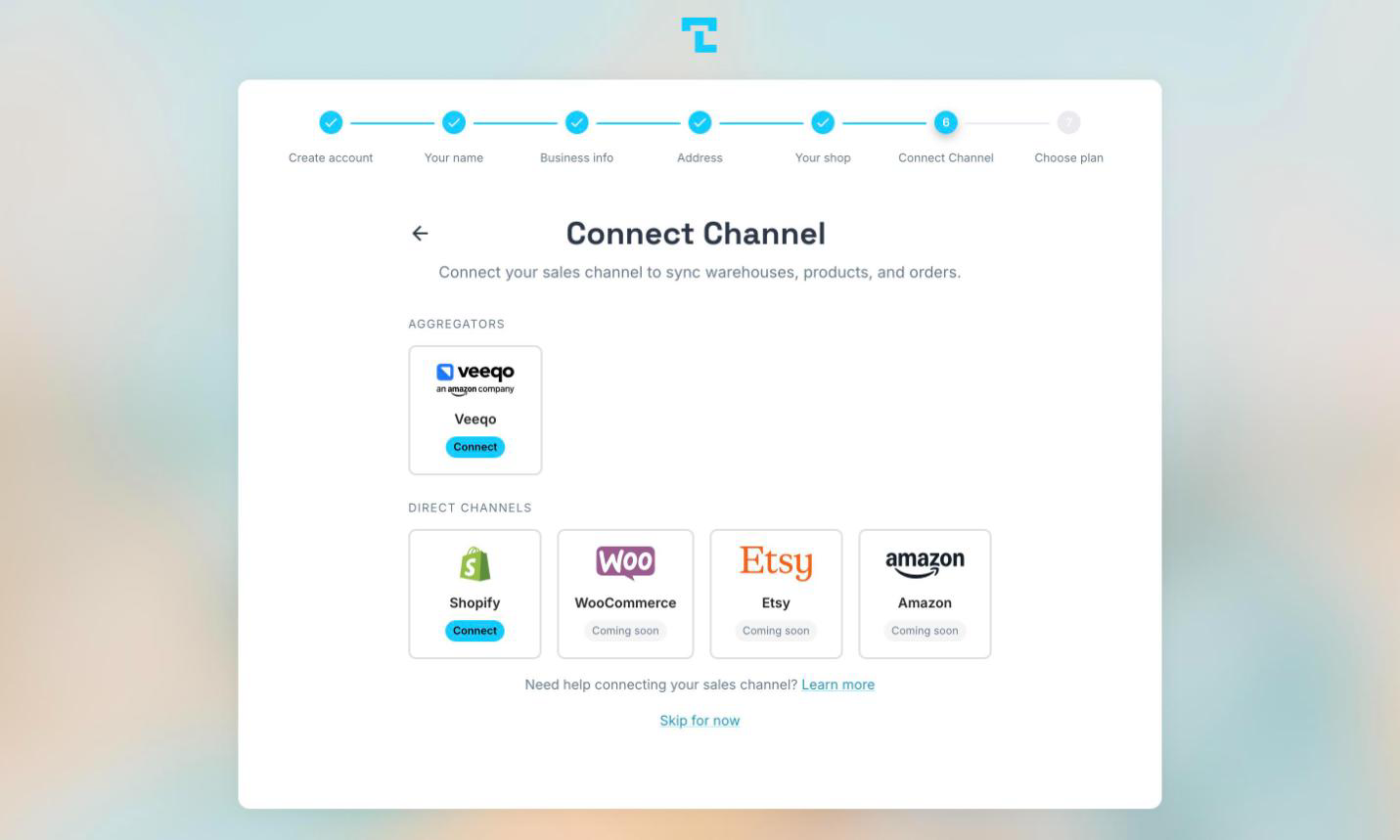
- On the Connect Channel step of sign-up, find the Veeqo card under Aggregators and click it.
- A popup opens to Veeqo's authorization page. Approve access there.
- The popup closes automatically once the connection succeeds, and sign-up moves on to the next step.
Tip
If your browser blocks the popup, allow popups for the site and try again.
Connecting from Settings
You can connect Veeqo any time from Settings → Channels: click + Connect Channel, then click the Veeqo card and approve access in the popup that opens.
The connection card
Once connected, Veeqo appears as a card in Settings → Channels with a green Connected pill. The card shows:
- A Primary warehouse selector — used when Veeqo doesn't tell Tracelot which warehouse should fulfill a line.
- Order Processing — pull and process orders from Veeqo.
- Sync Expired Inventory — decrement Veeqo stock when a batch expires.
- Mark Shipped — when you mark an order shipped in Tracelot, also mark it shipped in Veeqo.
- Push Reallocations — mirror Tracelot allocation moves back to Veeqo.
- A Line Item Format row — sets how batch and lot details appear on Veeqo order line items.
Use the refresh icon on the card to reconnect (re-run authorization) if Veeqo access needs to be renewed.
Disconnecting
Click the unlink icon on the Veeqo card in Settings → Channels, then confirm. Tracelot stops syncing Veeqo until you reconnect.