
Settings
Subscription settings
Check your plan status, trial end date, and manage or start billing.
Updated 2026-09-03
The Subscription tab shows your account's current billing status and gives you a way to start or manage your plan. It's visible to owner and admin users only.
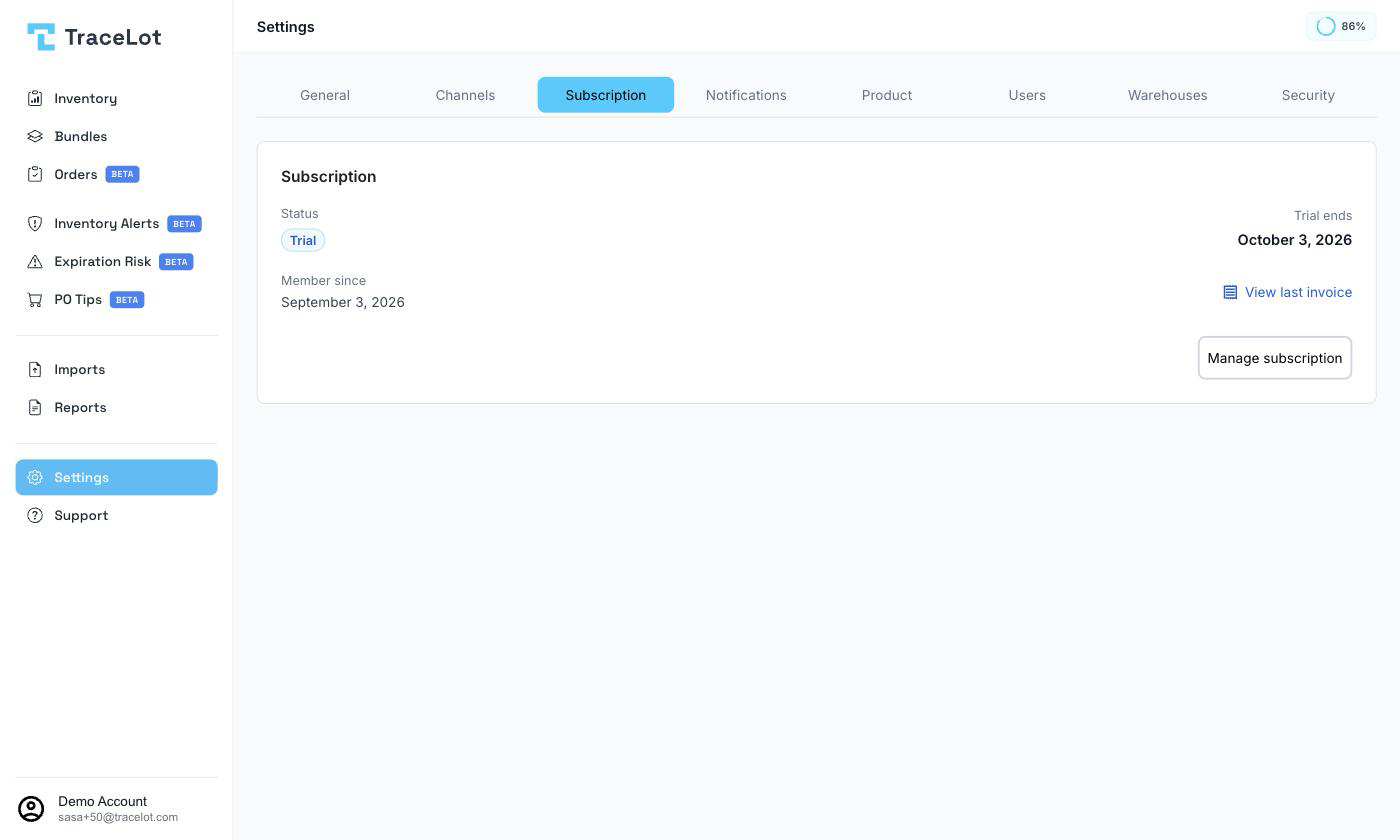
Status
A status badge shows one of: Active, Trial, Past Due, Unpaid, Canceled, Incomplete, Expired, Paused, or Not Active. Alongside it, a date shows Trial ends while trialing, Access until if canceled, or Renews on otherwise.
If there's anything you need to act on — no active subscription, a failed payment, an incomplete checkout — a message explaining the situation appears above the action button.
Member since and invoices
Shows the date your account was created, and, when Stripe has a most recent invoice on file, a View last invoice link that opens it in a new tab.
Managing your plan
If you don't have an active or trialing subscription, click Choose a plan to open the pricing table and subscribe — the same one shown during sign-up. If you do, the button reads Manage subscription and opens Stripe's billing portal in a new tab, pre-filled with your email, where you can update payment details, change plans, or cancel.
Note
If your account was installed from the Shopify App Store and hasn't paid through Stripe, your billing runs through Shopify App Pricing instead. Manage that subscription from your Shopify admin rather than through the Stripe billing portal link — see Choosing a plan.