
Orders
Reallocate and deallocate
Move a line's allocation to different batches, or pull it off inventory entirely.
Updated 2026-09-03
Reallocating changes which batch (or batches) fulfill an order line. Deallocating clears a line's allocation entirely and protects it from the automatic allocator. Both are done from the Reallocate button on an order card's line item (see Reading an order card).
When to reallocate
Reallocate a line when the batch that FEFO picked isn't the one you actually want to ship — for example, that batch turned out to be damaged, you want to hold it back for another purpose, or you'd rather use up a batch sitting in a different warehouse first.
Reallocating an item
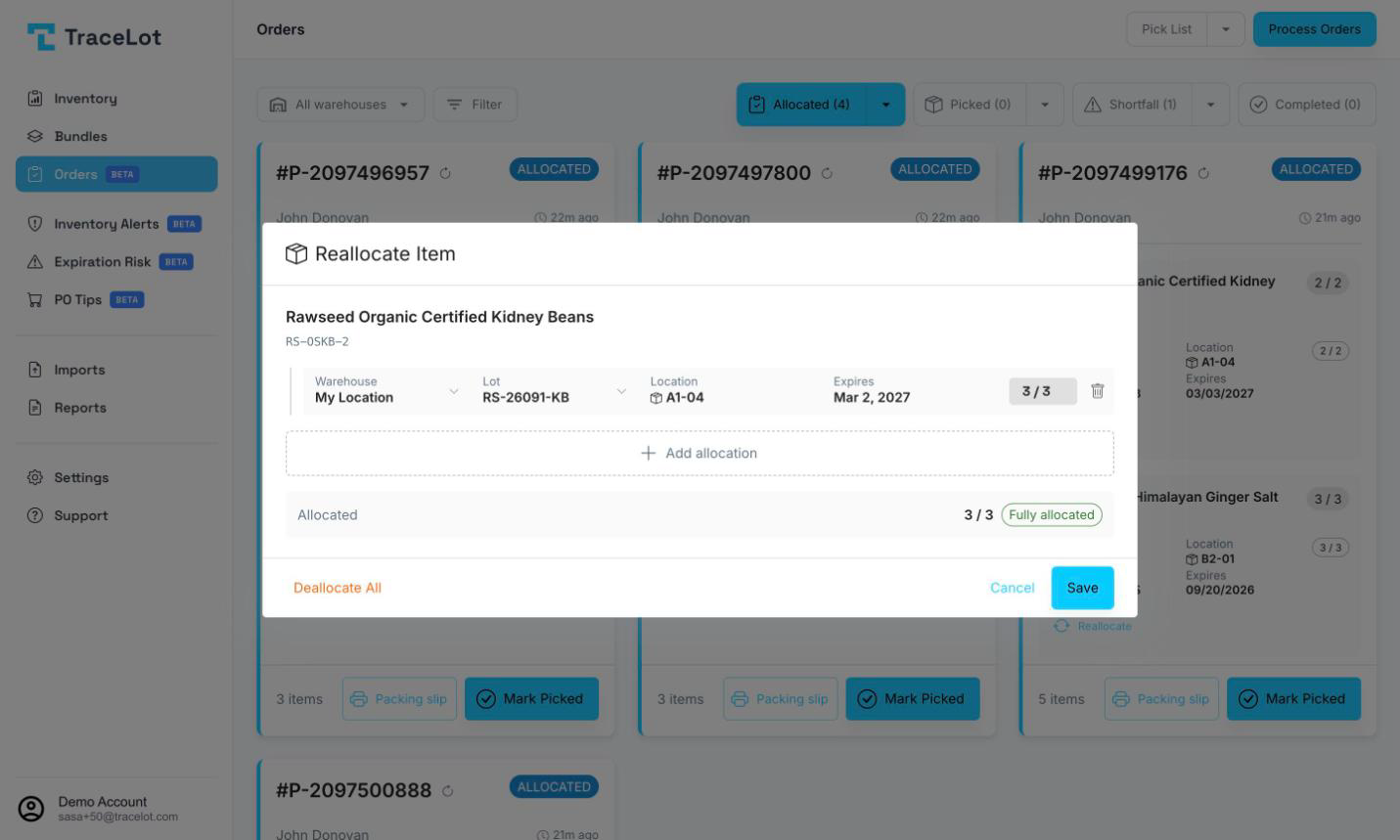
Clicking Reallocate on a non-bundle line opens the Reallocate Item dialog, seeded with the line's current open allocations. Each allocation row has:
- Warehouse — click to choose a different warehouse from the ones that can fulfill this item.
- Lot — click to choose a different batch from that warehouse's available batches (each shown with its available units, expiry, and location).
- Location and Expires — read-only, filled in from the chosen batch.
- A quantity pill (N / Ordered) — click to edit; it's capped by both the line's ordered quantity and the chosen batch's available units.
- A trash icon to remove that row. Removing the last row deallocates the line.
Click + Add allocation to split the line across an additional batch or warehouse. The stat bar at the bottom shows Allocated N / Ordered with a warning chip if the line is left under- or over-allocated. Save is disabled while any row is missing a batch/warehouse/quantity or the total exceeds what was ordered. You can also click Deallocate All to clear every row in one step.
Reallocating a bundle
A bundle line's components are reallocated together: click Reallocate Bundle (shown once, under the bundle's last component) to open the Reallocate Bundle dialog. Each row represents one warehouse's slice of the bundle, with a quantity pill in bundle units rather than component units, plus a nested Lot picker for every component of the bundle at that warehouse. Save is disabled until every component in every row has a batch chosen and the total doesn't exceed the bundle units ordered.
Deallocating
Deallocating a line clears its allocation and marks it so the automatic allocator skips it going forward — only a manual reallocation re-enables it. You deallocate either by removing every allocation row and clicking Save, or by clicking Deallocate All. A deallocated line shows a Deallocated chip on the order card and is treated as a shortfall until it's reallocated.
What the channel sees
Saving a reallocation or a deallocation updates Tracelot immediately and, when your Push Reallocations setting is on for that channel (Settings → Channels), also tries to push the change to the channel. If that push fails, the change is still saved locally and a warning toast tells you the channel update may need to be done manually.