
Orders
Marking picked and shipped
Move orders through Mark Picked and Mark Shipped, one at a time or in bulk.
Updated 2026-09-03
Mark Picked and Mark Shipped are how an order moves from allocated, to picked, to completed. Both are available on a single order and as a bulk action across a whole tab.
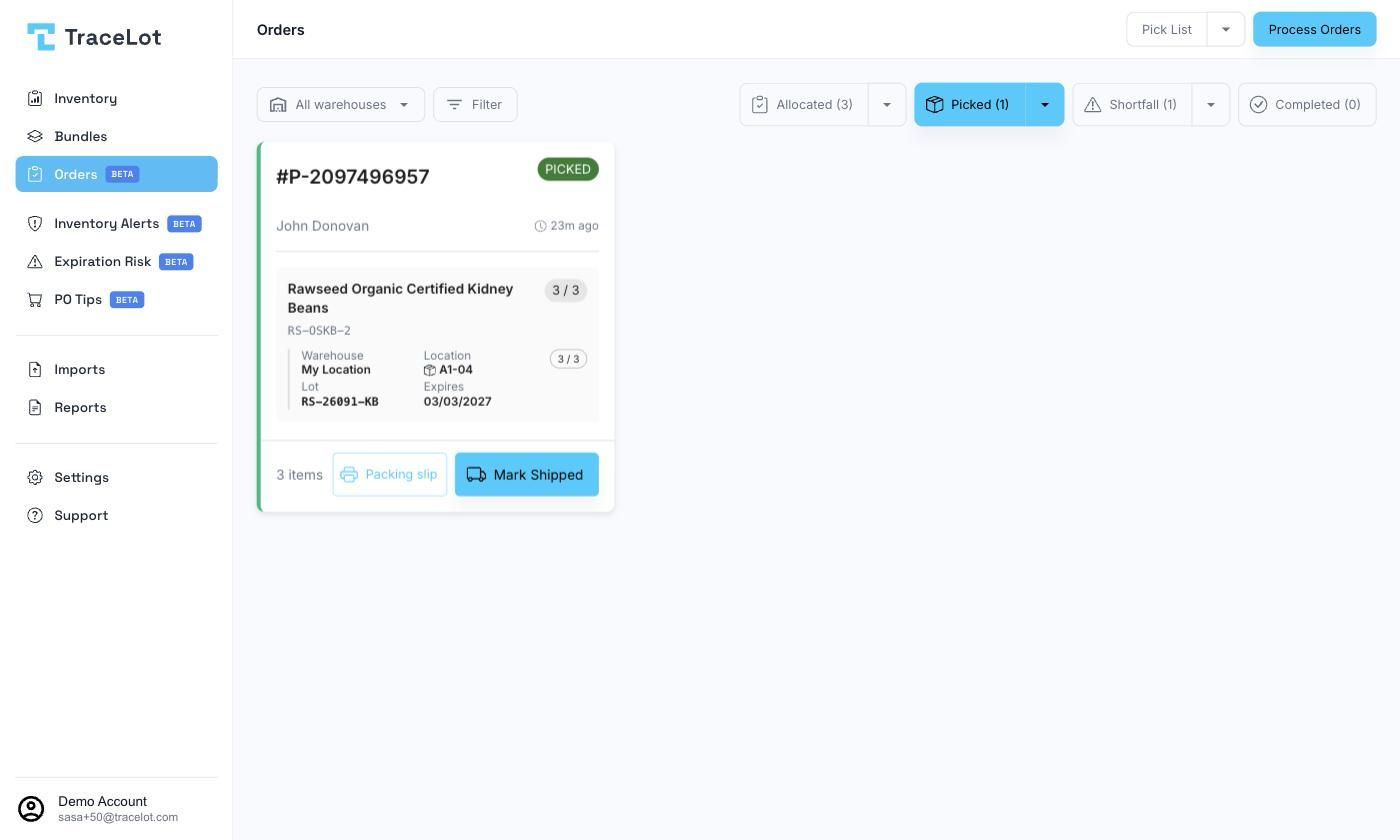
Marking picked
Click Mark Picked on an order card on the Allocated tab to move that order to the Picked tab. If the order has any unfulfilled lines — a shortfall, a deallocated line, or a partial allocation — Tracelot warns you first with a Mark Picked with Unfulfilled Lines? dialog listing the affected lines; confirming with Mark Picked Anyway commits to shipping it partial, leaving the unfulfilled lines open for later reallocation.
To mark every allocated order picked at once, open the Allocated tab's bulk-action menu and choose Mark All Picked. Marking every item in a pick job picked also marks its linked orders as picked automatically.
Marking shipped
Click Mark Shipped on an order card on the Picked tab (or on a row in the Shortfall/Completed table where it's shown) to move that order to the Completed tab. To ship every picked order at once, open the Picked tab's bulk-action menu and choose Mark All Shipped.
The Shortfall tab has its own bulk Mark All Shipped, described in Shortfall — it behaves differently (it never contacts the channel and requires typed confirmation) because it's meant for clearing orders the channel has already shipped.
What changes
Marking picked doesn't change stock — allocation already reserved it. Marking shipped is what finalizes the deduction against the allocated batch(es). If your Mark Shipped channel setting is on (Settings → Channels), marking an order shipped in Tracelot also marks it shipped on the connected channel.