
Settings
Channel settings
Connect, configure, reconnect, and disconnect the sales channels your account syncs with.
Updated 2026-09-03
The Channels tab lists every sales channel connected to your account, one card per connection, and lets you connect a new one. It's visible to owner and admin users only.
Connecting a channel
Click + Connect Channel to open the channel picker, then choose a channel and approve access in the popup that opens. See Connecting Veeqo and Connecting Shopify for the full walkthroughs.
Careful
Tracelot allows either one aggregator (Veeqo) or one-or-more direct channels (like Shopify) on an account, never both. Connecting one class while the other is active fails until you disconnect first.
The connection card
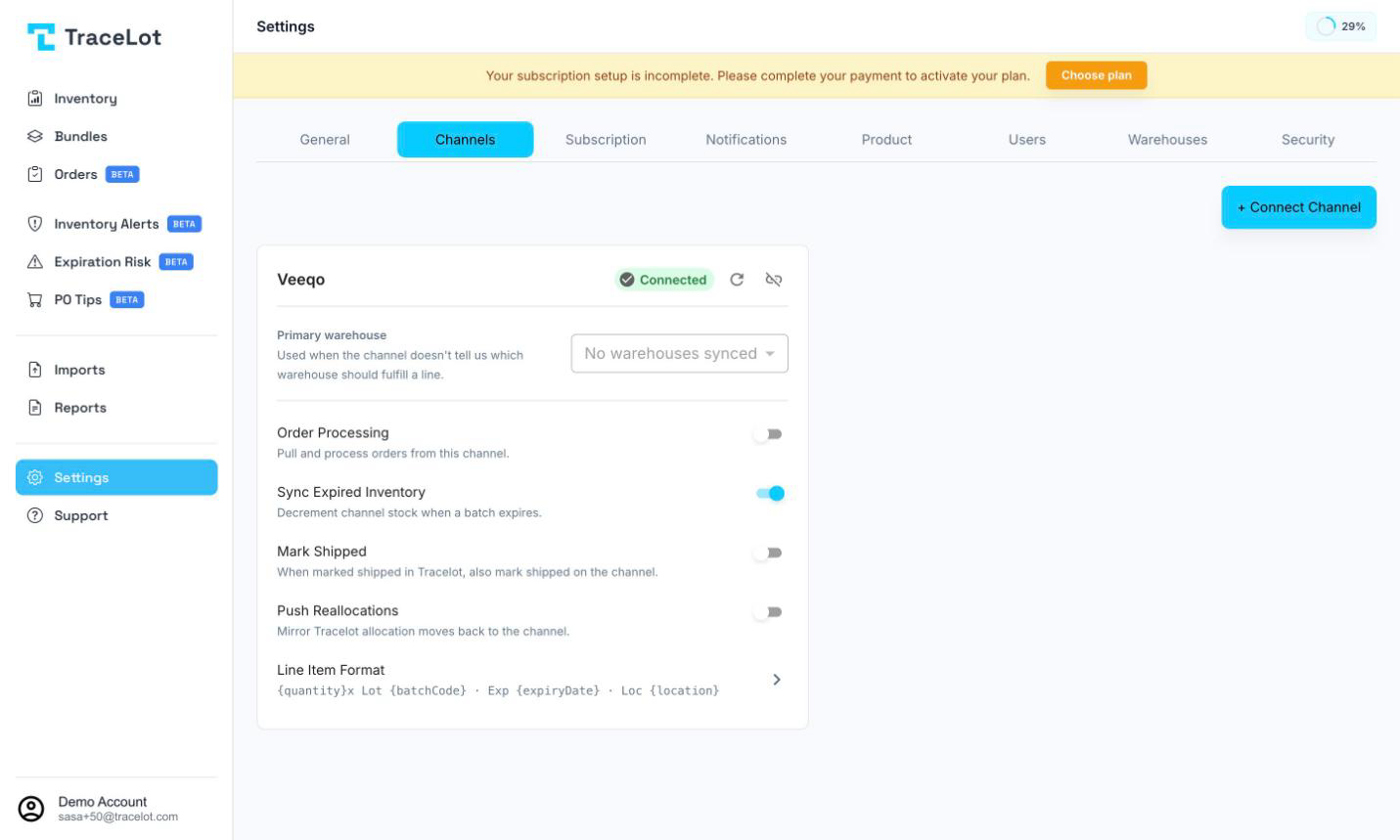
Each connected channel gets its own card showing its name (and, for a direct channel, its store domain), a green Connected pill, and:
- A Primary warehouse selector — used when the channel doesn't tell Tracelot which warehouse should fulfill a line.
- Order Processing — pull and process orders from this channel.
- Sync Expired Inventory — decrement channel stock when a batch expires. On by default.
- Mark Shipped — when an order is marked shipped in Tracelot, also mark it shipped on the channel.
- Push Reallocations — mirror Tracelot allocation moves back to the channel.
Each toggle saves immediately and independently — flipping one doesn't affect the others or require a separate Save action.
Veeqo Line Item Format
A Veeqo connection's card adds a Line Item Format row showing a preview of the current template. Click it to open the Veeqo Line Item Format dialog, where you can customize the note written to each Veeqo order line item using tokens for lot code, expiry date, location, quantity, remaining quantity, supplier, description, and a custom batch field. The dialog shows a live preview built from sample values and warns about any token it doesn't recognize (an unknown token is still written literally rather than dropped). Click Save to apply.
Reconnecting
Click the refresh icon on a card to reconnect — this re-runs the connection's authorization. Use it if the channel's access needs to be renewed or its permissions have changed.
Disconnecting
Click the unlink icon on a card, then confirm. Tracelot stops syncing that channel until you reconnect it.
Related
Connecting Veeqo · Connecting Shopify · How order processing works