
Stock movements
Transfers
Move stock to another warehouse, or take it out of tracking entirely, from a batch's page.
Updated 2026-09-03
Open a batch from its product's Active tab (or from History for a completed batch) and click Transfer in the toolbar. The Transfer Batch dialog moves stock out of the current batch — either into another warehouse or out of Tracelot's tracking altogether.
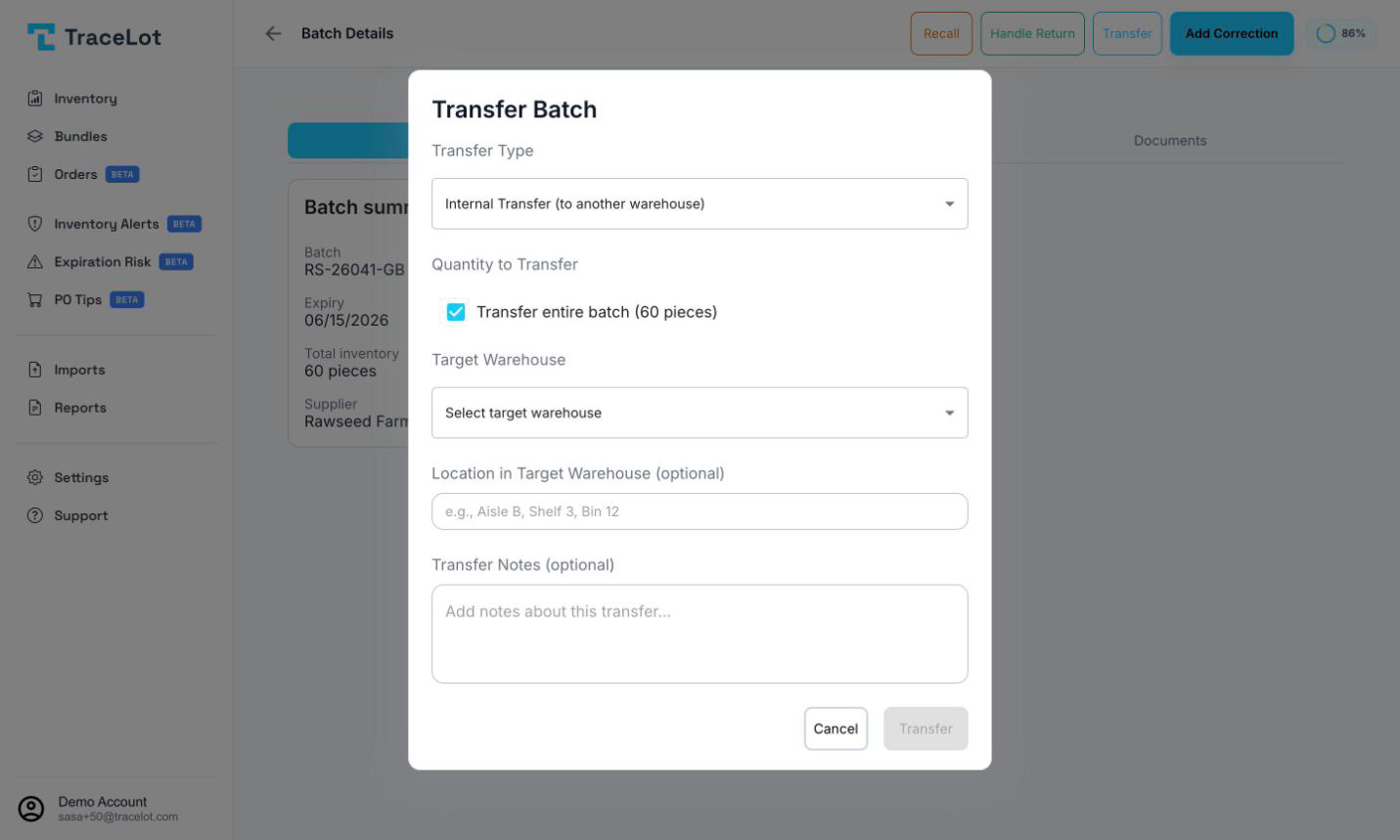
Internal vs. external transfer
The Transfer Type dropdown offers two options, worded exactly as the dialog defines them:
- Internal Transfer (to another warehouse) — moves the quantity to a warehouse you pick from Target Warehouse. Tracelot keeps tracking this stock: it books a TRANSFER_OUT entry against the source batch and a TRANSFER_IN entry against a batch at the destination.
- External Transfer (remove from stock) — removes the quantity from Tracelot's tracking entirely. There's no destination warehouse to pick; the dialog's optional text field is labeled Transfer Information instead of Transfer Notes, with a placeholder suggesting reasons like a customer return, disposal, and so on. Only a TRANSFER_OUT entry is booked — nothing is created on the other end.
Note
Internal transfers are for warehouses you're still tracking in Tracelot. If stock is leaving your operation altogether (scrapped, donated, sent somewhere you don't track), use External Transfer.
Transferring a whole batch
Transfer entire batch is checked by default, showing the batch's full remaining quantity (in pieces, or in your preferred weight unit for a bulk/on-demand batch). Leave it checked to move everything.
Transferring part of a batch
Uncheck Transfer entire batch to reveal a quantity stepper (with −/+ buttons and a typed field) capped at the batch's remaining quantity — you can't transfer more than what's left.
- Uncheck Transfer entire batch.
- Enter the quantity to transfer, using the stepper or typing a value up to the remaining amount shown alongside the field.
- For an internal transfer, choose the Target Warehouse (required) and, optionally, a Location in Target Warehouse — e.g. "Aisle B, Shelf 3, Bin 12".
- Optionally add Transfer Notes (internal) or Transfer Information (external).
- Click Transfer (internal) or Transfer Out (external, shown on the button itself).
After the transfer
For an internal transfer, Tracelot creates a batch at the target warehouse carrying the same batch code, expiry date, and supplier as the source, with its description set to "Transferred from {source warehouse}". If a batch with the same code and expiry date already exists in the target warehouse, the transferred quantity is added to that batch instead of creating a duplicate.
For an external transfer, no destination batch is created — the quantity simply leaves the source batch and is not tracked anywhere else in Tracelot.
Either way, the source batch's Transactions tab shows the resulting entry, and if the source product is synced to a channel, Tracelot re-syncs it afterward so the channel's quantity reflects the change.