
Getting started
The onboarding checklist
The Startup Guide panel walks account owners through connecting a channel, activating billing, and processing a first order.
Updated 2026-09-03
The Startup Guide is a panel that opens on the right side of the dashboard for account owners, listing the steps left to get Tracelot fully working. It opens automatically the first time you land on the dashboard if any step is incomplete, and stays available until every step is checked off.
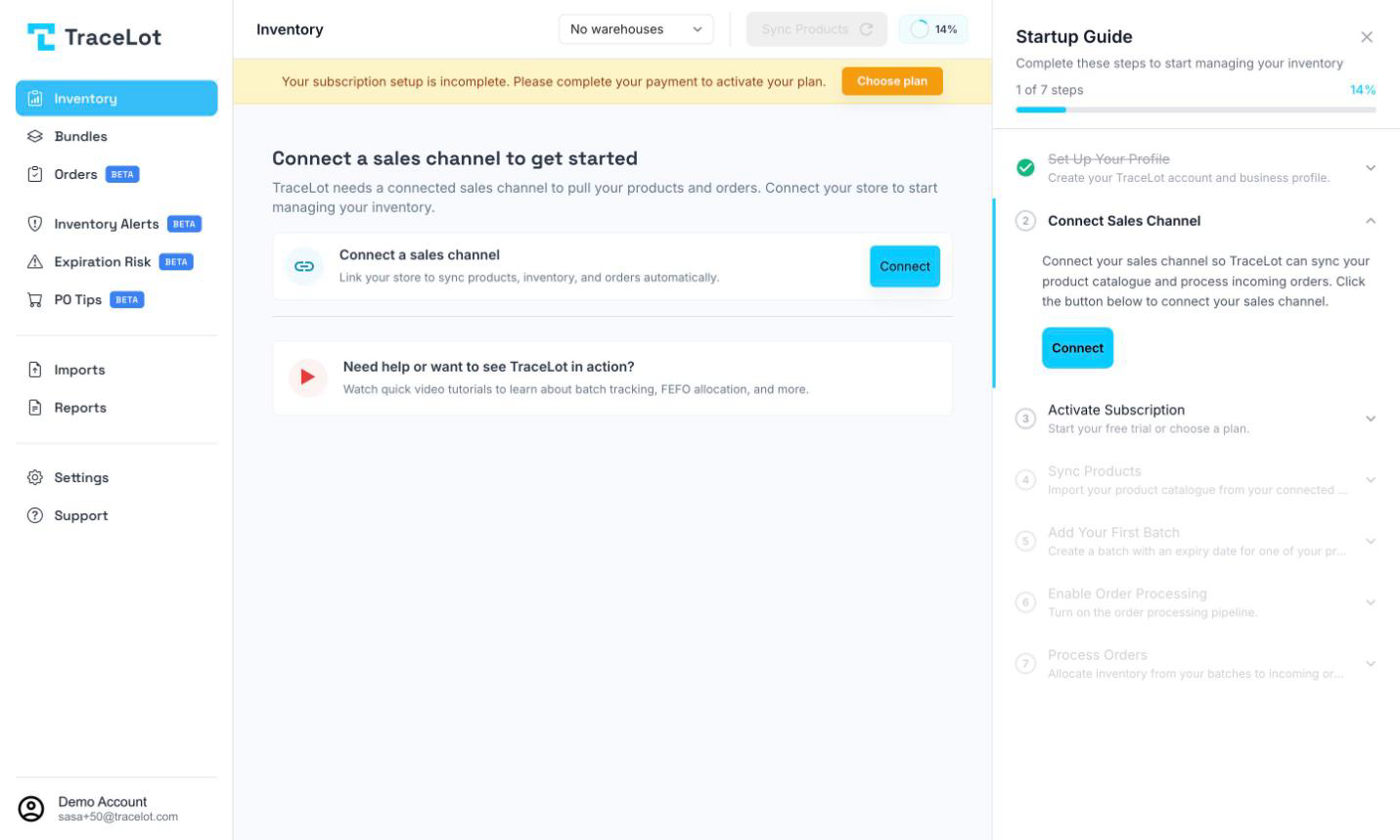
The steps
Each step shows a title, a short description, and a button that either performs the action directly or takes you to the right page:
- Set Up Your Profile — marked done automatically, since you completed it during sign-up.
- Connect Sales Channel — click Connect to open the channel picker. See Connecting Veeqo or Connecting Shopify.
- Activate Subscription — click Choose Plan to open the pricing dialog. See Choosing a plan.
- Sync Products — click Sync Products to pull your full product catalogue, including variants and SKUs, from your connected channel. This step needs a channel connected first, and needs a warehouse selected in the dashboard toolbar.
- Add Your First Batch — click Go to Inventory, then open a product and add a batch with a code, quantity, and expiry date. This step needs a channel connected first.
- Enable Order Processing — click Enable to turn on order processing for your channel. With more than one channel connected, this takes you to Channel settings instead, since you need to choose which connection to enable it on. This step needs a channel connected and products synced first.
- Process Orders — click Process Orders to run allocation on all pending orders, matching incoming orders to your batches using FEFO (First Expiry, First Out). This step needs order processing enabled first.
Note
A step greyed out with reduced opacity is locked — its prerequisite steps aren't complete yet. Complete those first.
Reopening the guide
While any step is still incomplete, a small circular progress indicator showing your completion percentage appears in the toolbar at the top of the dashboard, labeled Getting Started Guide on hover. Click it to reopen the panel. Once every step is complete, the indicator — and the guide — disappear.
Steps stay checked once complete, and the guide re-checks your progress automatically as you navigate the dashboard, so finishing a step elsewhere (like adding a batch from the Inventory page) is reflected here without extra action. Two steps can also become un-checked again if their underlying condition stops being true: Connect Sales Channel if you disconnect your channel, and Activate Subscription if your subscription lapses.
Related
Creating your account · Products and sync · How order processing works